
To know which Google Ads account generated each sale, add a custom parameter with a fixed value to the Final URL suffix field of each account — for example, c=account1 in one and c=account2 in the other. That parameter travels with the click all the way to checkout and comes back in the sale postback. In AdsX, it shows up in the details of every sale on the Sales screen. This article walks you through the full setup — no coding and no extra tools.
Final URL suffix: a field under the Ad URL options, in the ad editor in Google Ads, where you append extra parameters to the end of your ad's destination URL. Anything you put there is automatically attached to the link on every click from that ad — without changing the display URL or affecting ad approval.
Why do affiliates run more than one Google Ads account?
It's common for affiliates to separate operations: one account per niche, one per product, or separate accounts by currency and country. The problem shows up when it's time to measure results. Your affiliate network — ClickBank, Digistore24, MaxWeb, AdCombo — records the sale, but it doesn't tell you which account the click came from. Without that, you can't tell which operation is profitable and which one is just burning budget.
Without that separation, scaling decisions become guesswork. You might increase spend on the wrong account — or pause the one that was actually converting.
How do you identify which Google Ads account each sale came from?
The solution is to tag each account with its own fixed parameter. Here is the full path:
- You pick a short identifier for each account — e.g., c=account1 for the first, c=account2 for the second
- You add that identifier to the Final URL suffix field in each account's ads
- A user clicks your ad and the parameter is appended to your presell URL automatically
- Your presell page passes the parameter along to the affiliate network's checkout link
- When the sale happens, the network returns the parameter in the postback
- In AdsX, the parameter appears in the sale's details — and you know exactly which account drove it
Step by step: setting up the Final URL suffix
1. Open the ad editor
In Google Ads, log into the first account, open the campaign, and click to edit the ad. Scroll down to the "Ad URL options" section and find the Final URL suffix field.
2. Add your identifier parameter
Type the parameter in name=value format, with no spaces. Example: c=account1. Save the ad. If the account has more than one ad, repeat it in each — the value can be the same for every ad in the same account.
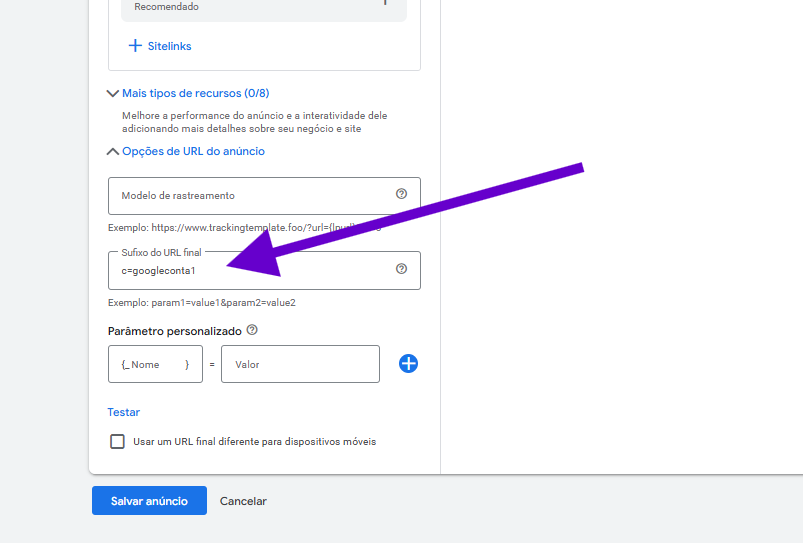
3. Repeat in the other accounts with different values
Log into the second account and apply the same setting, changing only the value: c=account2. In the third, c=account3, and so on. The parameter name (c) stays the same everywhere — the value is what identifies each account.
4. Check the result on the AdsX Sales screen
When a sale comes in, open the Sales screen in AdsX and click the eye icon in the Details column. The "Postback data received" window shows every parameter that arrived with that sale — including your account identifier. Depending on the affiliate network, the field name may arrive differently (such as subid2), but the value you configured is preserved: if you see account2, the sale came from your second account.
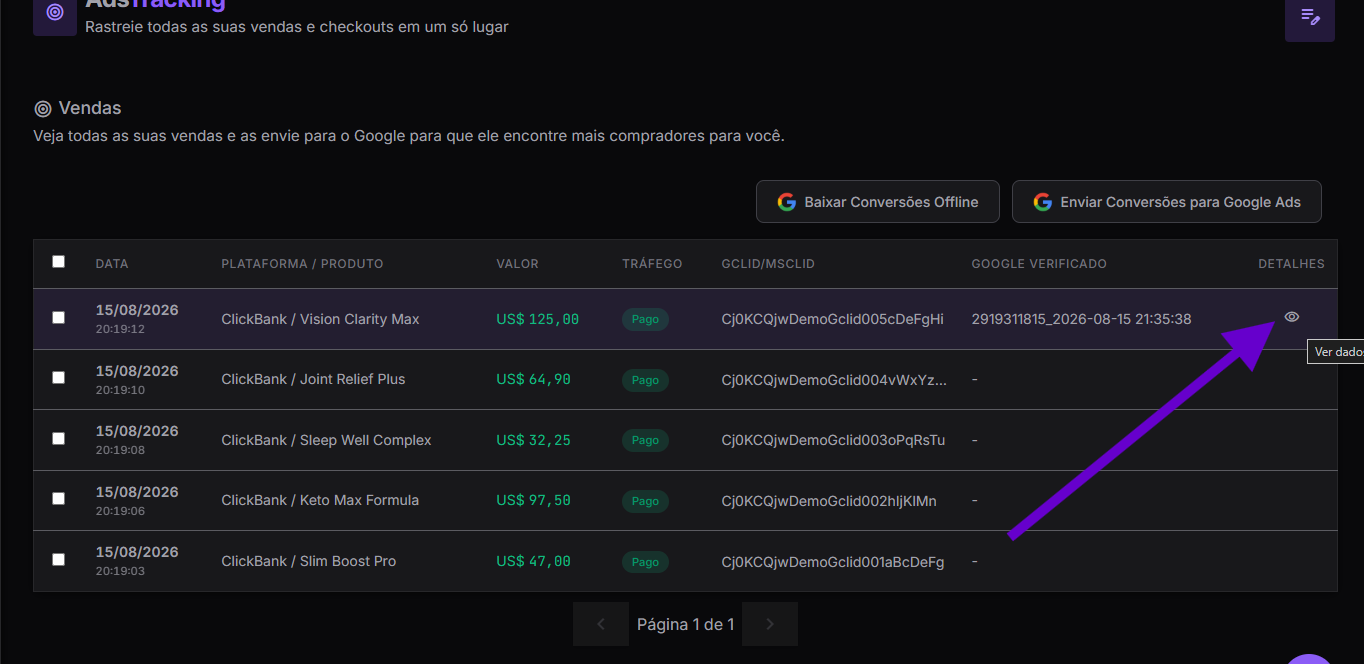
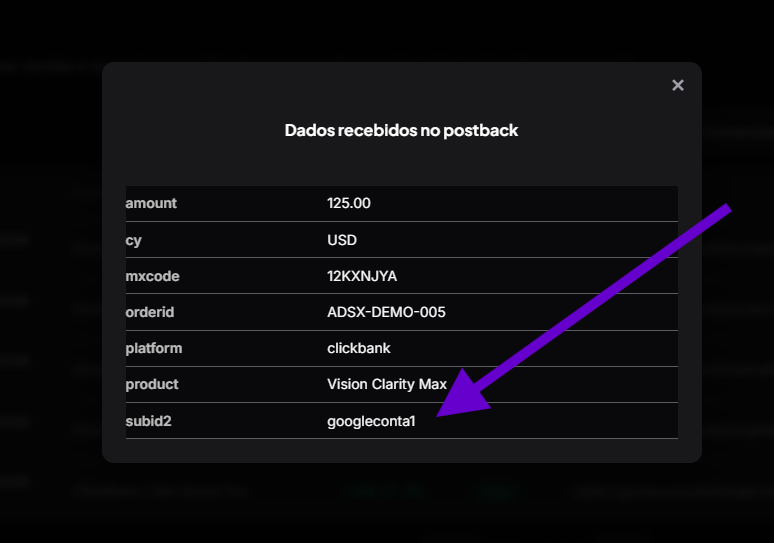
Three things to watch: use short values with no spaces or special characters (account1, not "account 1"); never reuse parameter names Google Ads already relies on, such as gclid or utm_source — that can conflict with tracking; and the tag only applies to sales made after the setup — past sales cannot be identified retroactively.
Where AdsTracking fits in this flow
None of this works if the parameter gets lost along the way. That's the job of AdsTracking, part of the AdsX Escala Max+ plan: it follows the click's journey through your presell to checkout and receives the affiliate network's postback with every parameter preserved — across more than 20 platforms, including ClickBank, Digistore24, MaxWeb, and AdCombo.
You don't touch any presell code and you don't configure a server. The parameter you set in Google Ads travels through the entire funnel and lands, readable, on the Sales screen alongside the rest of the conversion data.
With a single fixed parameter per account in the Final URL suffix, affiliates can identify the origin of 100% of new sales tracked by AdsX — at no extra cost, with no scripts, and without changing campaign structure.
Frequently Asked Questions about multi-account tracking
Can I use the same method to separate campaigns instead of accounts?
Yes. The logic is identical: instead of one value per account, use one value per campaign, set in that campaign's ads (e.g., c=weight-loss-campaign). Each campaign then carries its own identifier.
Does the extra parameter affect ad approval?
No. The Final URL suffix is an official Google Ads feature built precisely for adding tracking parameters. It doesn't change your display URL or the ad's real destination — it only appends information to the end of the link.
What if I forget to set it up in one of my accounts?
Sales from that account will arrive without the identifier — you'll still see them on the Sales screen, just without a known origin. In practice, the missing parameter already hints the sale came from the unconfigured account, but tagging all of them is the safer play.
Does this work with any affiliate network?
It works with networks that return tracking parameters in the sale postback — which includes the 20+ platforms integrated with AdsTracking, such as ClickBank, Digistore24, MaxWeb, AdCombo, and BuyGoods. The parameter enters the checkout link and comes back with the sale notification.
Conclusion: one simple parameter answers the question
Knowing which Google Ads account drove each sale doesn't require a new tool or technical skills. One fixed parameter in each account's Final URL suffix, different values across accounts, and the answer shows up in each sale's details inside AdsX. Set it up once and every new sale arrives with its origin already tagged.
If you're not tracking your sales yet, this is the first step: with AdsTracking active, you not only learn which account each sale came from — you also send conversions back to Google Ads so the algorithm optimizes on real buyer data.
Know which account drove every sale
AdsTracking receives postbacks from your affiliate networks with every parameter preserved — including your Google Ads account identifier. No code, real time.