
If Google keeps asking for a Passkey at sign-in and you can't get past it, the immediate fix is clicking "Try another way" and using your password — and the permanent fix is turning off "Skip password when possible" in your account's security settings. Signing in to your Google account is essential for any tool that works with Google Ads, so unblocking this sign-in matters for your whole operation. This guide walks you through everything in a few minutes.
A Passkey is a passwordless sign-in method: instead of typing anything, you confirm your identity with your device's PIN, fingerprint, or face unlock — on Windows, that's the Windows Hello window popping up. The Passkey is stored on the device where it was created.
Why is Google asking for a Passkey out of nowhere?
Google has been enabling Passkey sign-in automatically across millions of accounts. The key is often created from a quick "Continue" click during some sign-in — without you even noticing. From then on, Google prefers the Passkey over your password, especially for actions it considers sensitive, like signing in to Google Ads or connecting your account to marketing tools.
The problem shows up when the Passkey was created on another device — your phone, an old laptop — and your current computer has no way to answer it. The result: you're stuck on a PIN window that doesn't recognize you, unable to sign in.
Quick fix: sign in another way right now
If you're stuck on the Passkey screen at this moment, you don't need to change any setting to get in:
- On the Windows window asking for your PIN or fingerprint, click Cancel
- On the Google screen, click "Try another way"
- Choose "Enter your password" (or get a code on your phone)
- Sign in normally with your Google account password
How to turn off the Passkey prompt for good
To make Google ask for your password on every sign-in again, turn off the Passkey preference on your account:
1. Go to myaccount.google.com/security signed in with your Google account. 2. Under "How you sign in to Google", click "Skip password when possible".
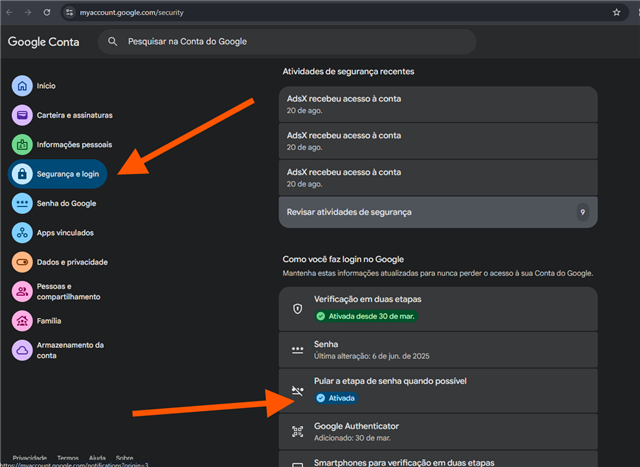
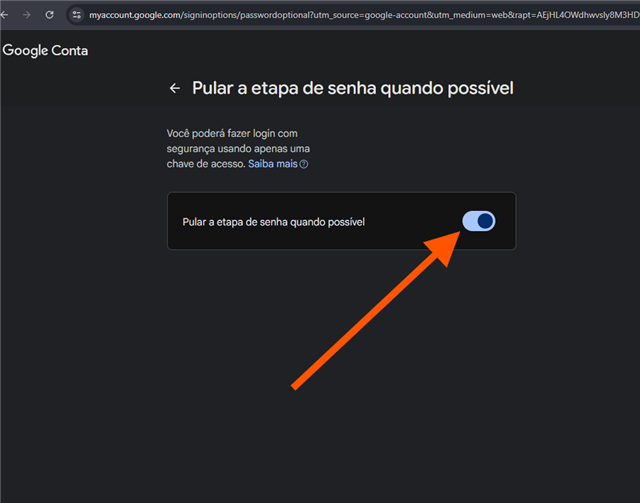
3. Turn off the option by clicking the toggle.
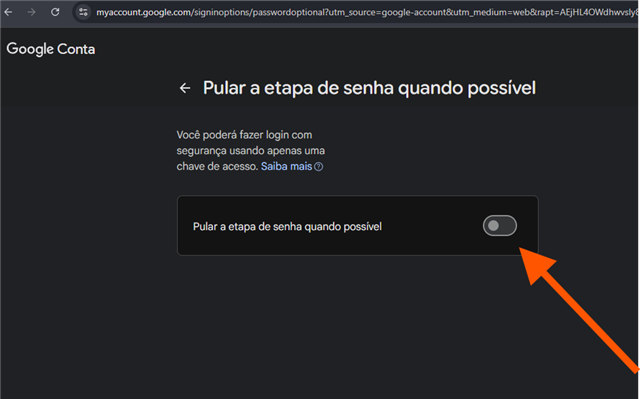
4. Done — the toggle turns gray, and from the next sign-in on, Google asks for your regular password, no Passkey.
Turning this off does not delete your Passkeys — they stay registered and can be used whenever you want. What changes is the preference: Google stops pushing the Passkey first and offers your password again. Two things to watch: make the change on the same Google account shown on the sign-in screen (people with several accounts often turn it off on the wrong one), and to remove a Passkey created by mistake, use the same security screen, under "Passkeys".
The change applies immediately to every device on the account — you turn it off once and password sign-in works again on your desktop, your laptop, and any browser.
Why this matters if you run Google Ads
Affiliates and advertisers sign in to their Google account several times a day — in Google Ads, Search Console, and when connecting the account to automation tools. Every sign-in blocked by a Passkey that won't respond is operation time lost. AdsX users, for example, connect their Google account once so AdsCreator can build campaigns and AdsTracking can record conversions — and with sign-in unblocked, that connection takes seconds.
If you still can't sign in
In some cases Google insists on the Passkey and your computer can't answer it — for example, when the key was created on another device, or when the machine's Windows Hello isn't working. If you followed the steps above and sign-in is still blocked, the fastest path is using another Google account: any Gmail you can access normally with a password, or a new one, created in 2 minutes at gmail.com. Password sign-in works on any computer — the Passkey blocker stays behind, and you connect the new account to your tools and keep operating.
Frequently Asked Questions
Does turning off the Passkey make my account less secure?
No, as long as you keep 2-Step Verification on. The Passkey is a convenient sign-in method, but your account's core protection comes from a strong password combined with the second step (a code on your phone or an authenticator app) — and none of that changes when you turn off the Passkey preference.
My Passkey is on my phone. Can I use it on my computer?
Yes. On the sign-in screen, Google offers a QR code — you scan it with the phone where the Passkey is stored and confirm there. It's a good alternative when you don't want to change any setting.
Why does the Passkey show up right when I connect my account to a tool?
App connections are considered sensitive actions, and Google requires strong verification at those moments. If the account has a Passkey registered, it's the first option offered. With the preference turned off, Google asks for your password plus 2-Step Verification — the same security level, without depending on one specific device.
I created a Passkey by accident. How do I remove it?
Go to myaccount.google.com/security, open "Passkeys" (under "How you sign in to Google"), and remove the key from the device you don't recognize or no longer use.
Conclusion
The Passkey prompt at Google sign-in has a two-level solution: "Try another way" solves it on the spot, and turning off "Skip password when possible" solves it for good. With sign-in unblocked, connecting your Google account to your daily tools — from Google Ads to AdsX — goes back to being a matter of seconds.
Your Google Ads operation, friction-free
Connect your Google account to AdsX once and let the platform build campaigns with AI and track your conversions in real time.